
Brand kits let you configure custom logos, colors, sender names, and messaging for your campaigns.
You can customize your Giftogram emails with brand-specific logos, colors, and messaging. Once assigned to your campaign, the elements in your brand kit will appear in your Giftogram email. Create as many brand kits as your company needs.
To get started, follow the steps below:
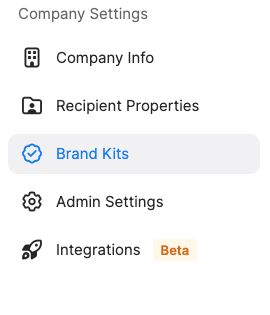
1. Go to your settings and find "Brand Kits" under "Company Settings" on the left-hand side.
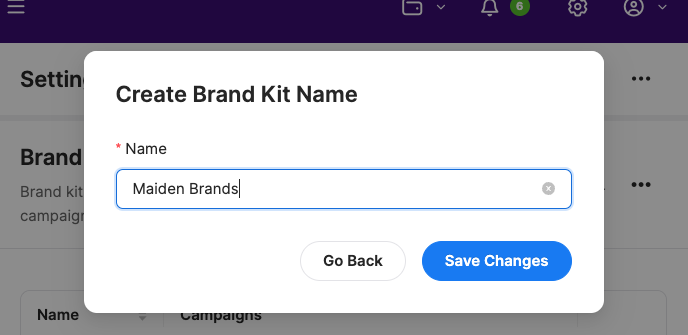
2. Click the blue "Create Brand Kit" button in the upper right of the screen to name your brand kit.
3. Upload your logo and select your brand colors for the email background and button.

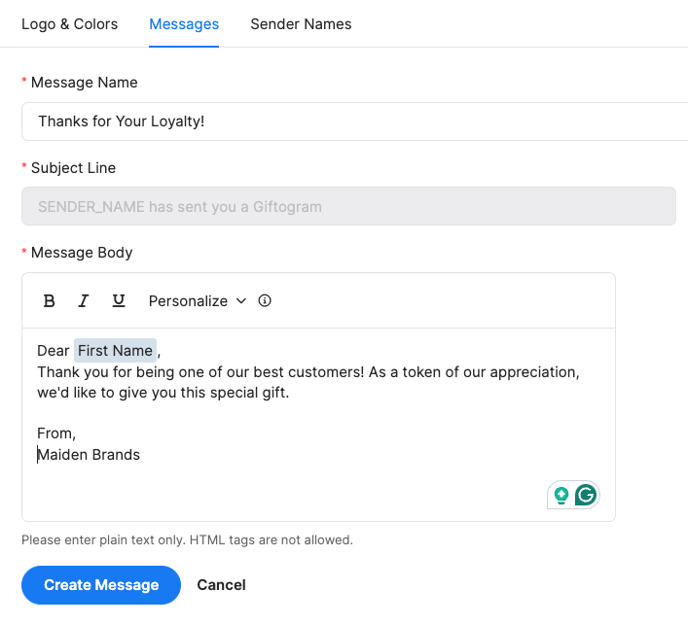
4. Save messages. While not required, saved messages are an excellent way for your team to stay on-brand in their communications and save time. You may also enter a message at checkout.
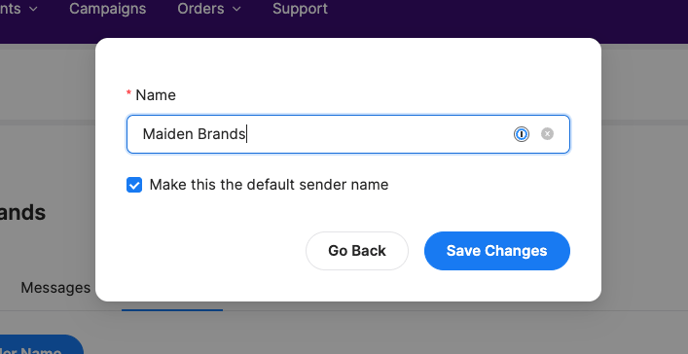
5. Lastly, add a custom sender name. This is the name your recipients will see in their inbox. If this is not assigned, it will default to the name specified in your User Settings.
This is what the branded Giftogram will look like based on the example above:

Next: Update your campaign to include your brand kit.